Practical guide
Why Do All-Day Calendar Events Shift by One Day?
First check whether the event still carries a calendar date or has become a timestamp. DATE-valued all-day events and midnight-UTC timed events have different meanings. Use the interactive comparison, exact field examples and import record to locate the first difference before changing dates or retrying an import.
First distinguish a calendar date from a timed instant
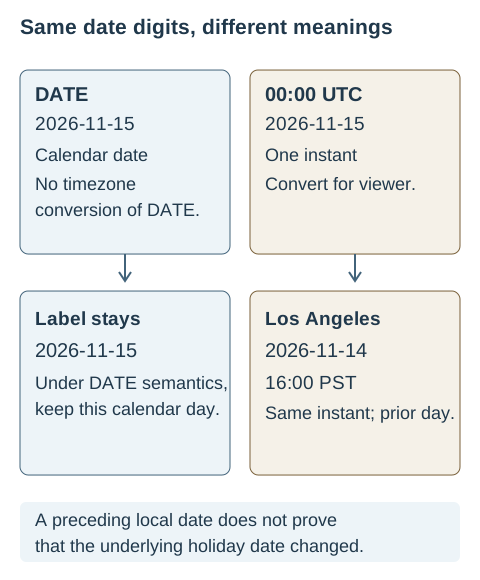
An all-day event can appear on the previous day when a calendar-date value has been converted into, or interpreted as, a timed instant and then displayed in another timezone. That is one mechanism to investigate, not a diagnosis of every shifted event. The source’s event type, exported fields, imported record and viewer settings can differ.
Start with one affected item. Write down its expected date and why you expect it: the publisher’s schedule, a confirmed personal reminder or a jurisdiction-specific holiday rule. Then check whether the source and destination still mark it as all-day. A holiday and its observed workday can also have legitimately different dates; that is a separate issue from timestamp conversion.
Do not shift every record forward by one day or change your whole account’s timezone merely to make one item look right. A real timed meeting can correctly appear on different local dates. Preserve the original export and inspect the representation before deciding what needs correction.
Read DTSTART and DTEND in the relevant event
If you can inspect an exported ICS file, open a copy as text and find the relevant VEVENT. Keep the original unchanged. Compare its title and available identity information so you do not accidentally inspect another event or a recurrence exception.
The start is DTSTART. DTSTAMP is a timestamp about the component, not the date of the event. An export can contain several dates that serve different purposes, so a date-looking value near the title is not enough to identify the schedule.
This property fragment represents one calendar day:
DTSTART;VALUE=DATE:20261115
DTEND;VALUE=DATE:20261116
Under RFC 5545, DATE values contain a year, month and day, without a clock time. The VALUE=DATE parameter explicitly selects that type for these properties. These fields cover November 15, 2026; the next-date end is non-inclusive.
For a DATE-valued VEVENT, any DTEND must also be DATE. The standard prohibits attaching TZID to a DATE property. If the original export already has valid DATE fields but the destination shows a different day, check where those semantics were lost or misinterpreted. Adding a timezone to the DATE value is not the standard’s repair.
See how midnight UTC becomes the preceding local day
Compare the DATE fragment with this different property:
DTSTART:20261115T000000Z
The T introduces a clock time, and Z identifies UTC. This means one instant at midnight UTC on November 15. It is not the same representation as an all-day DATE label. Converting that instant to Los Angeles gives November 14 at 16:00 under the calculated November timezone rules.
Compare a calendar label with midnight UTC
Choose a fictional date and viewer zone. The first result keeps a date label; the second converts a deliberately constructed midnight-UTC instant. It does not read, import or change a calendar account.
DATE label: 2026-11-15 — kept as a calendar-date label
UTC instant in the viewer’s zone: 2026-11-14 16:00 GMT-8 (America/Los_Angeles)
The computed view uses this browser’s timezone data. The static examples below were checked independently using IANA zone rules; this comparison is not evidence of how your calendar app imports a file.
| Midnight UTC date | Viewer’s zone | Local date and clock time | DATE label remains |
|---|---|---|---|
| 2026-11-15 | UTC | 2026-11-15 00:00 (UTC+00:00) | 2026-11-15 |
| 2026-11-15 | Los Angeles | 2026-11-14 16:00 (UTC−08:00) | 2026-11-15 |
| 2026-11-15 | New York | 2026-11-14 19:00 (UTC−05:00) | 2026-11-15 |
| 2026-11-15 | Tokyo | 2026-11-15 09:00 (UTC+09:00) | 2026-11-15 |
| 2026-09-15 | UTC | 2026-09-15 00:00 (UTC+00:00) | 2026-09-15 |
| 2026-09-15 | Los Angeles | 2026-09-14 17:00 (UTC−07:00) | 2026-09-15 |
| 2026-09-15 | New York | 2026-09-14 20:00 (UTC−04:00) | 2026-09-15 |
| 2026-09-15 | Tokyo | 2026-09-15 09:00 (UTC+09:00) | 2026-09-15 |
The September rows show why a fixed “subtract eight hours” shortcut is unreliable for a named zone with seasonal rules. Los Angeles is seven hours behind UTC in this September example and eight hours behind it in the November example. New York also changes its offset between the two dates. Tokyo does not change between these examples.
The static calculations use the IANA Time Zone Database, version 2026f, verified against its published release information. Timezone rules and application data can change, so use the source’s intended date or instant and your application’s current supported settings for a real schedule. The comparison demonstrates the arithmetic; it does not establish which exporter or importer changed your record.
A floating midnight is still a time, not an all-day date
Removing Z from a timestamp does not turn it into DATE:
DTSTART:20261115T000000
Without Z or TZID, this is a floating DATE-TIME. RFC 5545 describes floating time as the same local clock value regardless of the zone being observed. Attendees in different zones can therefore associate it with different actual instants. A VTIMEZONE elsewhere in the file does not automatically attach a zone to a property that has no TZID.
A time tied to a named place can instead use a timezone reference. This is a property fragment:
DTSTART;TZID=America/Los_Angeles:20261115T000000
A complete standards-based iCalendar object needs the corresponding VTIMEZONE definition for the referenced TZID. Applications may have their own supported export conventions, so use their exporter rather than treating this line as a complete import file.
Do not combine TZID with a UTC Z value, or append a numeric offset such as -0800 to an iCalendar DATE-TIME value. RFC 5545 does not permit that numeric-offset date-time form. The ordinary offset notation in the worked table explains a calculation; it is not an alternate ICS property syntax.
Choose the representation from the intended event: a whole calendar day, a floating clock-time activity or a fixed instant associated with a place. They solve different scheduling needs.
Check the exclusive end separately from the displayed start
A next-date DTEND is expected for a one-day DATE interval. The start is inclusive and the end is not. Changing an end of November 16 to November 15 does not correct a shifted display; it makes the shown interval invalid because the end is no longer later than the start.
For three covered dates, November 15, 16 and 17, the fields are:
DTSTART;VALUE=DATE:20261115
DTEND;VALUE=DATE:20261118
Count the covered calendar dates before changing a multi-day event. If the source intended a different range, confirm it with the publisher rather than guessing from the destination’s visual block.
A calendar day also need not equal 24 elapsed hours between local midnights. RFC 5545’s duration discussion recognizes clock-change discontinuities. These two calculations measure elapsed time by comparing UTC instants:
| Calendar date | Start offset | Next midnight offset | Elapsed hours |
|---|---|---|---|
| 2026-03-08 | -08:00 | -07:00 | 23 |
| 2026-11-01 | -07:00 | -08:00 | 25 |
The March example spans 23 elapsed hours; the November example spans 25. Both are one local calendar-day interval. Constructing a fixed 24-hour timestamp interval is therefore not a general substitute for an all-day DATE event.
These calculations do not say that an all-day label should move during a clock change. They show why a repair based on adding hours can introduce a different meaning. Keep date interval, elapsed duration and viewer display as separate checks.
Locate the first difference before retrying an import
Compare the same event at each available stage: source display, original export, imported record and destination display. Mark the first stage whose type, date or time differs from the intended representation. Where you cannot inspect a stage, leave it unresolved rather than naming an application as the cause.
| Record | What to save | Assumption to avoid |
|---|---|---|
| Expected date | The date from the source, including its year and jurisdiction. | A familiar holiday name fixes every date. |
| Source and owner | App, publisher, calendar and whether you can change this entry. | An imported or subscribed entry belongs to you. |
| Source display | All-day status, visible date and any start/end time before export. | The exporter received a date-only event. |
| Exported DTSTART | Exact property line in the relevant VEVENT, if available. | DTSTAMP is the event’s start date. |
| Value type | DATE or DATE-TIME, including T, Z, VALUE and any TZID. | Midnight is another spelling of all-day. |
| Exported DTEND | Type and exclusive end; compare it with DTSTART. | A next-date end necessarily adds a displayed day. |
| Destination display | Account, calendar, all-day status, dates, clock time and zone. | Every displayed copy comes from one calendar. |
| First point of difference | Source display, exported fields, imported record or viewer display. | A visible shift proves which application caused it. |
| Next action and evidence | Keep a copy, request a corrected export or make a supported narrow change. | Move every event forward one day without checking timed events. |
If the source already treats the item as timed, confirm whether that is intentional. If its display says all-day but the export contains UTC midnight, ask for a supported export that preserves the intended date type. If the file retains DATE but the imported record becomes timed, record those exact fields for the destination provider.
Google’s import troubleshooting recommends checking both the source and destination application’s timezones when events show at the wrong time. It describes computer-based troubleshooting. That guidance is useful for timed records, but it does not redefine DATE as an instant or prove that a global setting is the cause of every all-day shift.
Follow the current help for your account and app because menus and supported recovery methods can change. Retain the original and a supported destination backup before altering records. If your app supports a separately identifiable test calendar, use a narrow non-sensitive sample there. Check an all-day item, a timed item and any relevant recurring exception before applying the correction more broadly.
A changed recurring occurrence can have its own intended date. Compare it with the series rather than treating every matching title or UID as an error. The ICS import and duplicate-event guide covers overlapping sources and repeat imports; this guide focuses on the date and time interpretation.
Six cases: choose the correct interpretation
These original fictional cases separate a valid timezone conversion from a lost date type, an exclusive end, a floating time and a clock-change duration. Use the answer explanations to identify what evidence is still needed.
Case 1
The source is intended as a November 15 all-day reminder, but the exported line is DTSTART:20261115T000000Z. In Los Angeles it appears on November 14. What should you check?
Show answer and explanation for case 1
Check why the intended date was exported as a UTC DATE-TIME.
The Z identifies an instant at midnight UTC. Under the calculated November example, that instant is November 14 at 16:00 in Los Angeles. The time conversion itself is consistent with the representation. Confirm that the source really intends a calendar-date event, then ask for a supported export preserving DATE-valued start and end. Do not add one day to every destination entry: other records may be real timed appointments with correct conversions.
Case 2
The original export has DTSTART;VALUE=DATE:20261115 and DTEND;VALUE=DATE:20261116. The destination displays November 14. Does the RFC say the date needs a timezone?
Show answer and explanation for case 2
No. Keep the valid original and locate where DATE semantics were lost or misinterpreted.
RFC 5545 prohibits TZID on a DATE property. The shown interval covers November 15 under the standard’s inclusive-start, non-inclusive-end rule. Check the imported record, its all-day flag and the exact displayed calendar against the original export. If the destination has converted the value into a timestamp, record that difference. If its fields remain DATE but its display differs, use the provider’s support with a small non-sensitive example. The screen alone does not identify which stage caused the problem.
Case 3
A one-day DATE event starts November 15 and ends November 16. A helper proposes changing DTEND to November 15 to remove the apparent extra day. Is that a valid repair?
Show answer and explanation for case 3
No. The next-date exclusive end already represents one day.
The end is not another covered day. Changing it to equal the start would also violate the DTEND requirement that it be later than DTSTART for the shown VEVENT. Keep the valid interval and investigate the date type or display issue separately. For a three-day DATE event covering November 15, 16 and 17, the non-inclusive end is November 18. Count covered calendar dates before changing the interval.
Case 4
The file contains DTSTART:20261115T000000 without Z or TZID. Does that prove it is an all-day DATE event?
Show answer and explanation for case 4
No. It is a floating DATE-TIME, not a DATE property.
The T and clock portion identify a date and time. Without Z or a timezone reference, RFC 5545 treats it as floating time, even if a VTIMEZONE component exists elsewhere in the file. A floating event can represent the same local clock time for attendees in different zones while referring to different actual instants. If the intended record is all-day, confirm that intent and use the source’s supported all-day representation rather than simply removing the Z from another timestamp.
Case 5
A helper replaces a one-calendar-day reminder with a 24-hour UTC interval across Los Angeles’s November 1, 2026 clock change. Is that necessarily the same local day?
Show answer and explanation for case 5
No. This calculated midnight-to-midnight day spans 25 elapsed hours.
A calendar day and a fixed number of elapsed hours are different quantities. The corresponding March 8 example spans 23 elapsed hours. RFC 5545’s duration discussion explicitly recognizes discontinuities caused by clock changes. Preserve the intended DATE interval for an all-day label instead of assuming that adding 24 hours to an instant constructs the next local midnight. These are timezone-rule calculations, not a tested import result.
Case 6
A meeting is scheduled for November 15 at 00:00 UTC. A Los Angeles attendee sees November 14 at 16:00. Should the date be forced back to November 15?
Show answer and explanation for case 6
No, if the intended meeting is that fixed UTC instant.
Different local dates can be the expected representation of one meeting. Confirm the organizer’s intended instant and check the viewer zone. Turning the meeting into an all-day DATE event would discard its clock-time meaning. The troubleshooting question is whether the representation matches the source’s purpose, rather than whether all attendees see identical dates. Keep the calendar-date case and the timed-meeting case separate.
Make a narrow correction and verify unaffected events
Use the source application’s supported all-day option or a corrected publisher export when the intended item is genuinely date-valued. If it is a fixed-time meeting, keep its instant and correct only an incorrect viewer zone or source time after confirming the organizer’s intent.
A subscribed calendar can be read-only or controlled by its publisher. Report the mismatched fields to the owner instead of silently making a private replacement that will diverge from later updates. For an imported copy, use the destination’s supported editing or replacement workflow and check its backup and recovery options first.
After the correction, inspect the actual records. Confirm the intended covered dates, all-day status, exclusive end and timezone behavior of timed samples. Also check unrelated appointments and any recurrence exception you reviewed. One event looking right is not evidence that a bulk transformation preserved everything.
Download the original field examples, calculated conversions and nine-field checklist. Keep the source, export date, observed mismatch and supported correction together. The sheet is a working record, not an automated calendar repair.
If the expected date itself is uncertain, first separate the actual holiday from its observed date and check the publisher’s region and year. Date-source questions need to be settled before a timestamp adjustment can be judged correct.
Sources and further reading
- RFC 5545: Internet Calendaring and Scheduling Core Object SpecificationSelected sections 3.2.19, 3.3.4–3.3.6, 3.6.1, 3.8.2.2 and 3.8.2.4: DATE, floating and UTC DATE-TIME, TZID limits, exclusive end, matching types and clock-change durations.
- Google Calendar Help: Fix problems importingComputer-based import troubleshooting and checking source/destination timezones for wrong-time results; not a universal explanation of all-day date shifts.
- IANA: Time Zone DatabaseMachine-readable timezone rules, periodic changes, vendor updates and the verified 2026f version used for the static calculations.
Check timed entries separately from date labels
Use the floating-time travel comparison to choose a local routine or a shared instant. For a repeated meeting, trace local and UTC series through a clock change before adjusting an hour.